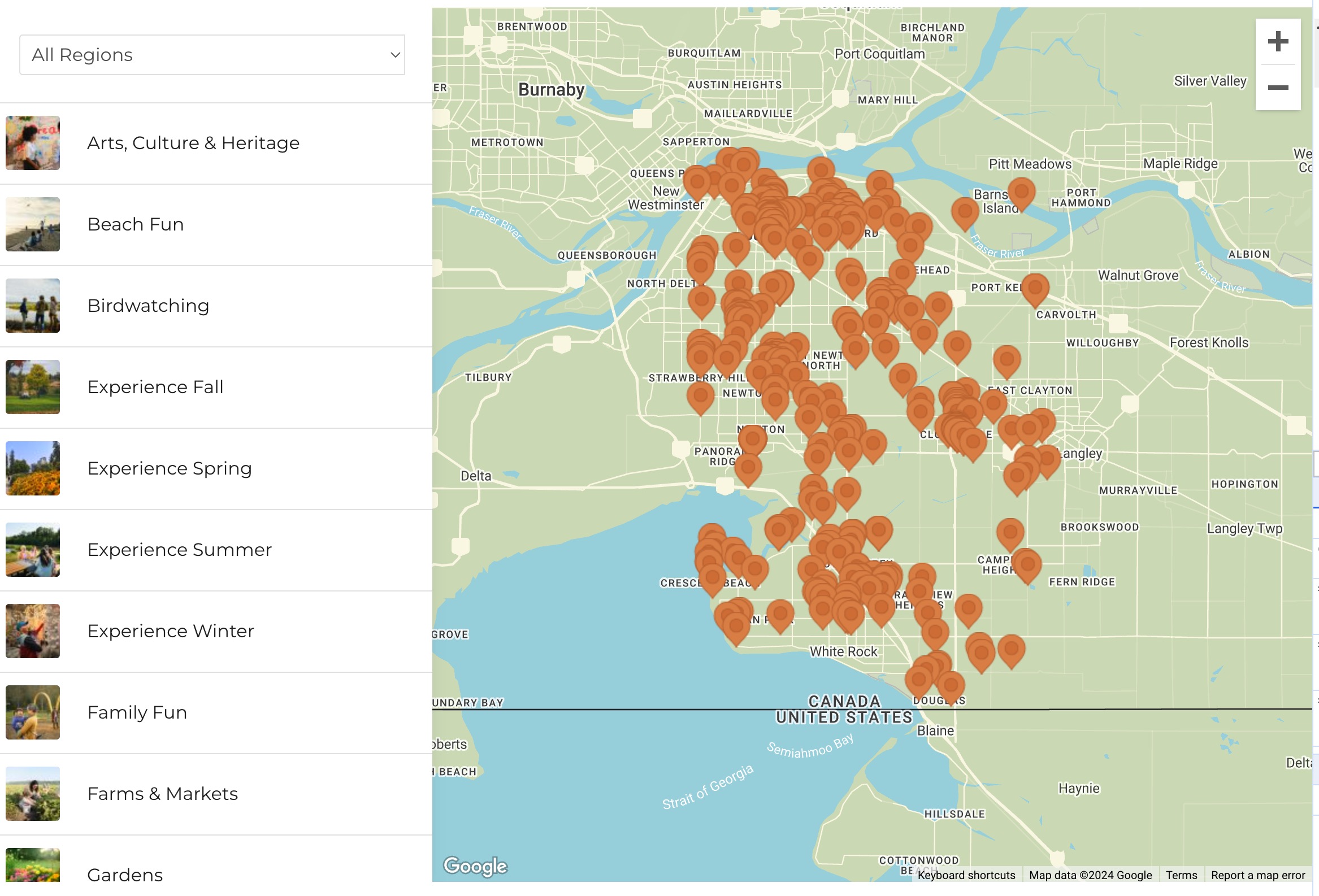
Partner Map Block
The Partner Map Block allows you to display partners across various categories on an interactive map. Users can filter partners by multiple categories, regions, and custom taxonomies, helping them find relevant locations and activities quickly.
Add a New Partner Settings and Fields Overview
Main Fields
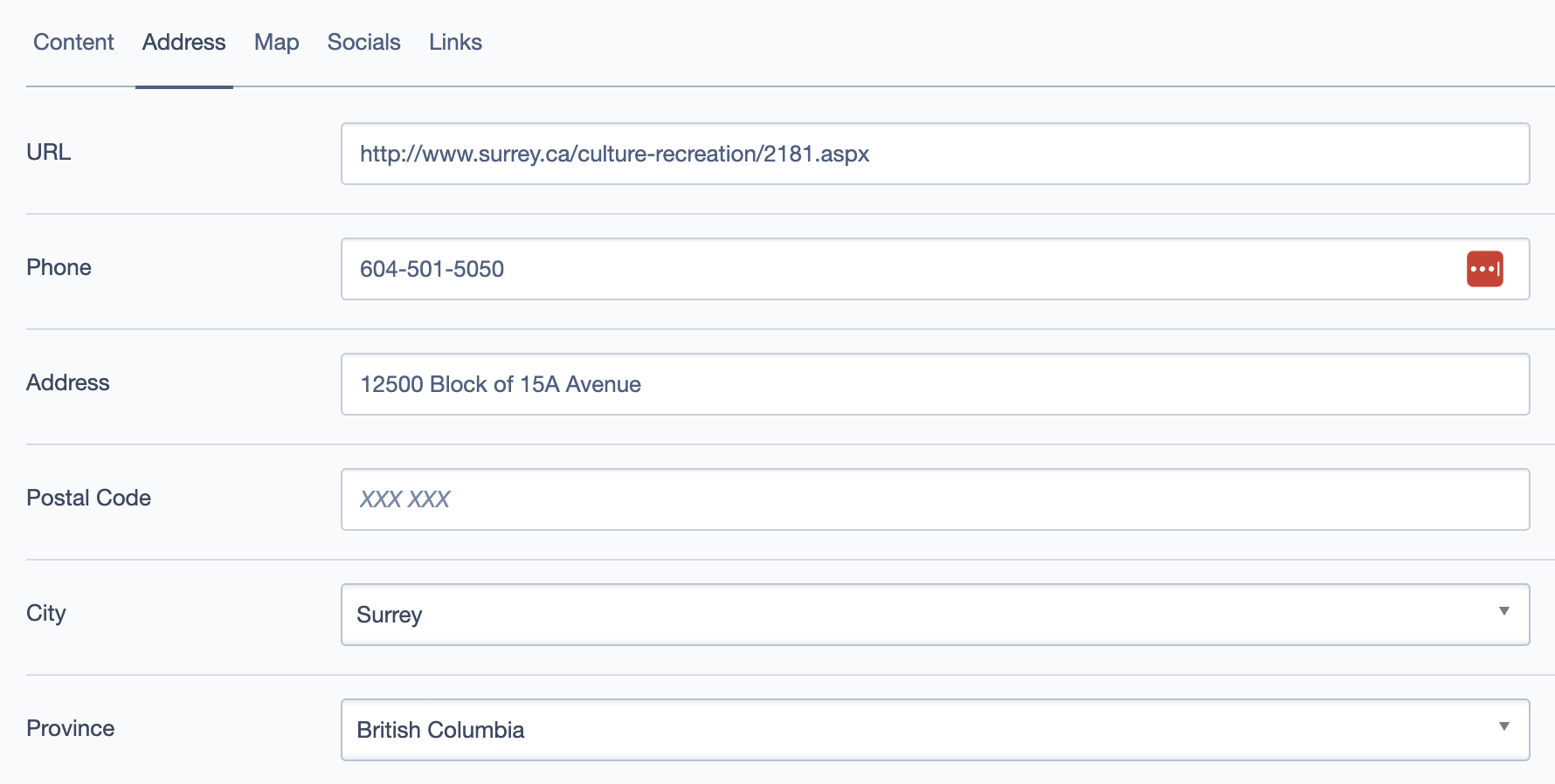
- Title: The name of the partner that will appear as the main title on the map list.
- Slug: A URL-friendly version of the title, automatically generated.
- Excerpt: A brief summary of the partner's location or service. This appears in search results or previews.
- Description: A detailed description of the partner, which may include highlights, services offered, and location features.
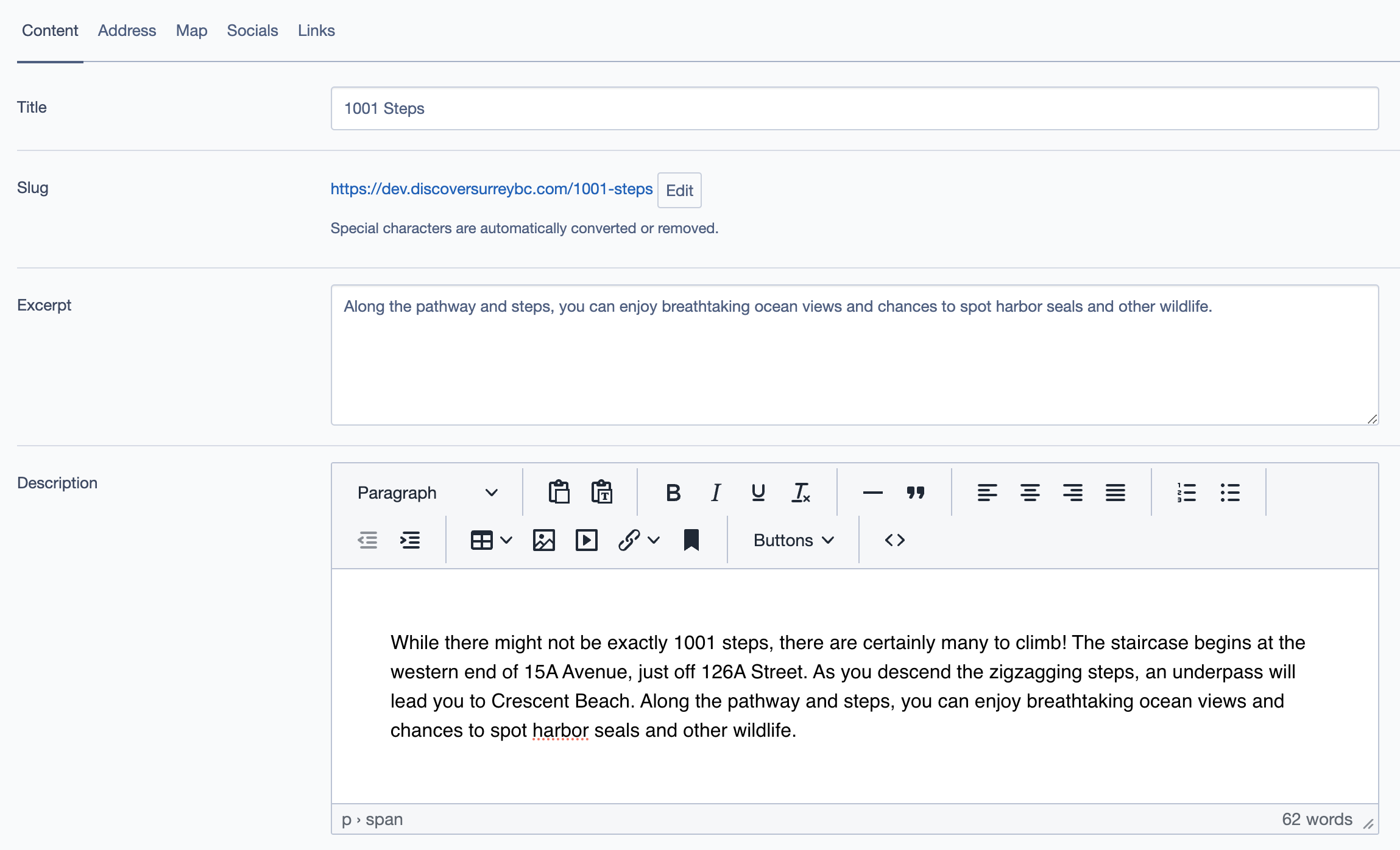
Address Fields
- URL: Link to the partner’s website.
- Phone: Contact number for the partner.
- Address: Full physical address displayed on the front end for user information but not used for map placement.
- Postal Code, City, Province: Additional address details that enhance the display on the front end, providing users with full location context.
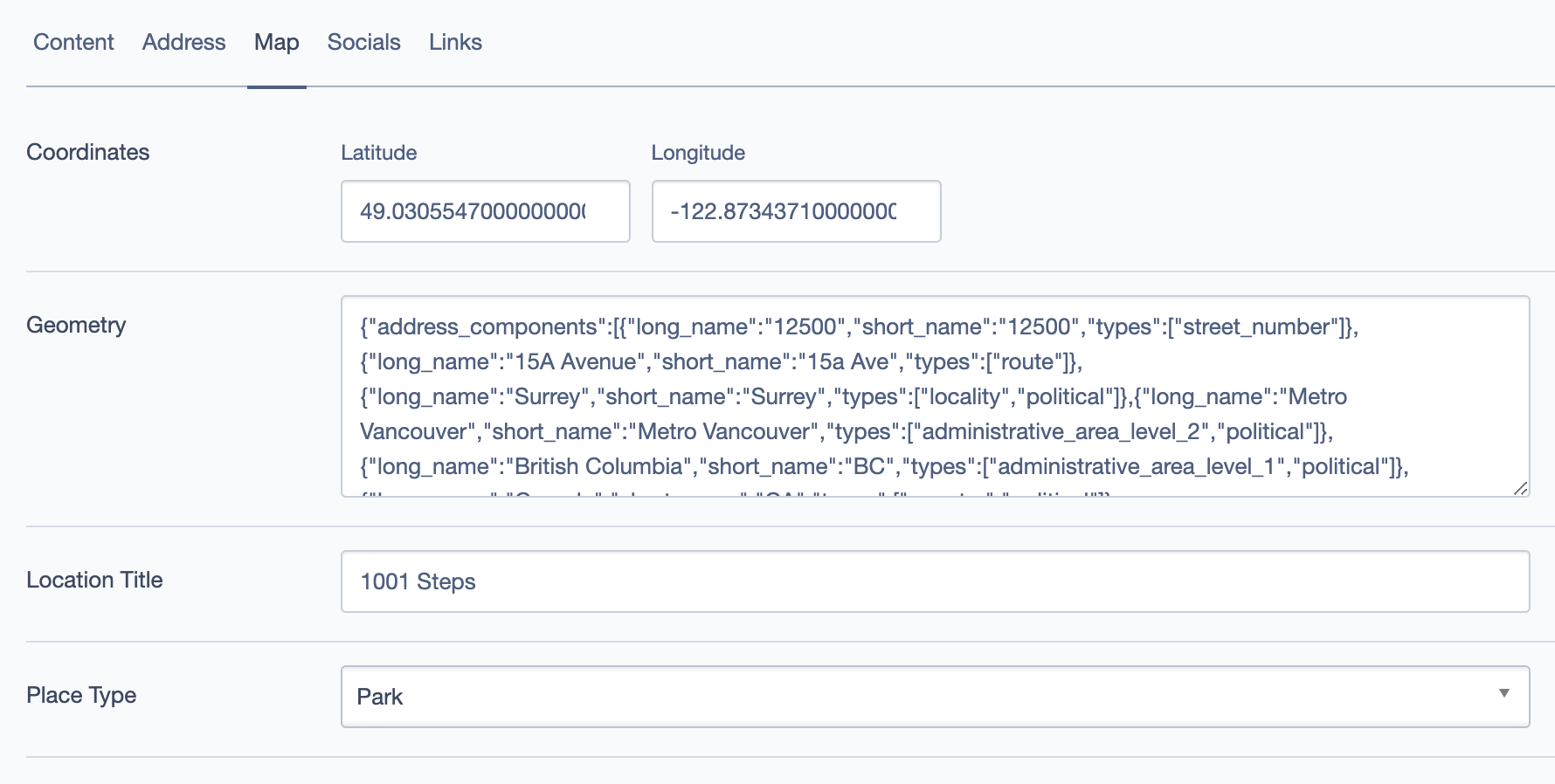
Map Fields
- Coordinates (Latitude & Longitude): Exact geographic coordinates required for placing the partner on the map. Ensure these are accurate for correct map placement.
- Geometry: (Optional) JSON data for more complex geometric boundaries, if needed.
- Location Title: A custom title for the location marker, used for map pins and previews.
- Place Type: Select a general category for the location, such as "Park," "Shop," or "Restaurant," to help with filtering and display.
Socials and Links
- Socials: Links to social media accounts, such as Facebook, Instagram, or Twitter.
- Links: Additional links related to the partner, like promotional pages or specific partner services.
Meta Fields
- Open Graph Title: Custom title for social media previews.
- Open Graph Type: Defines the content type (e.g., "Website," "Article").
- Open Graph Description: A brief description for social sharing previews.
- Open Graph Thumbnail: An image specifically chosen for sharing on social media.
Taxonomy Fields
- Collections: Grouping partners into larger categories (e.g., Experience, Nature).
- Categories: You can select multiple categories to classify partners by activity, season, or feature (e.g., "Experience Fall," "Experience Winter," "Outdoor Activities"). Selecting multiple categories will show this partner in each related activity, making it easier for users to discover.
- Tags: Specific keywords to aid in search and filtering.
- Regions: Regions within the map, such as "South Surrey" or "North Delta."
- Locales: Specific locales, such as "Crescent Beach."
- Accommodations and Cuisines: Optional fields to categorize based on accommodations or food types, if relevant.
Example Use Cases
1. Displaying Seasonal Attractions
- Use "Collections" to group locations by seasons (e.g., "Experience Fall").
- Filter partners on the map by selecting multiple relevant categories like "Outdoor Activities," "Parks," and "Trails" to show all related activities for a particular season.
2. Promoting Partner Campaigns
- Highlight partners by using Open Graph settings to enhance their social media visibility.
- Utilize the "Socials" and "Links" sections to provide users with quick access to social media campaigns and partner-specific promotions.
3. Multi-Category Listings
- For partners that fit multiple categories (e.g., a farm that offers "Family Fun" and "Experience Fall"), select both categories to ensure the partner appears in both related activity sections.
Best Practices
- Consistency in Titles and Descriptions: Ensure titles are unique and descriptions provide concise yet informative content for better user engagement.
- Use of Multiple Categories for Broader Reach: By selecting multiple categories, the partner becomes visible under various activities, enhancing discoverability.
- Optimizing for Social Media: Fill out the Open Graph fields (title, type, description, and thumbnail) to create attractive previews when sharing the partner's page on social media platforms.
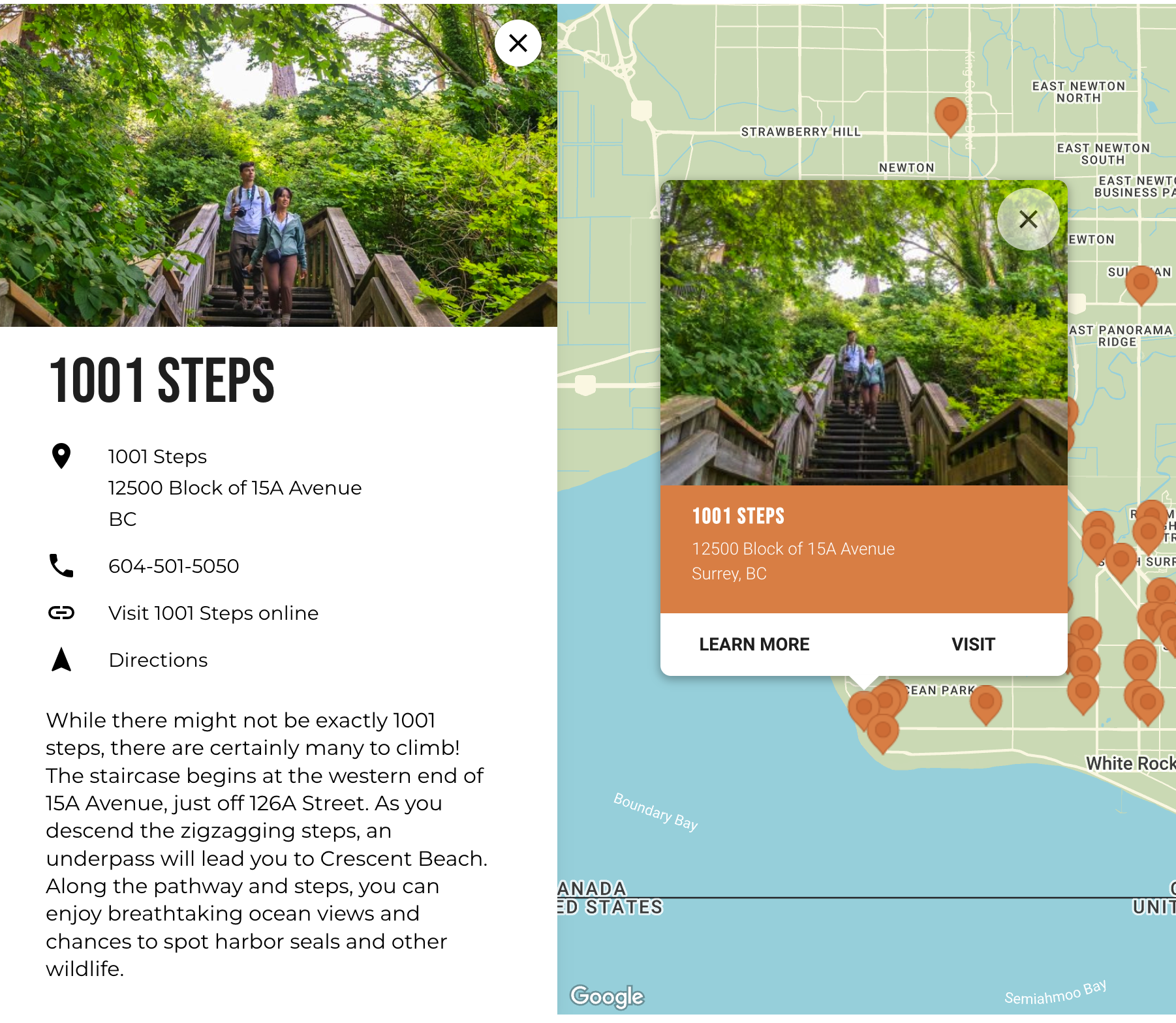
Frontend Display